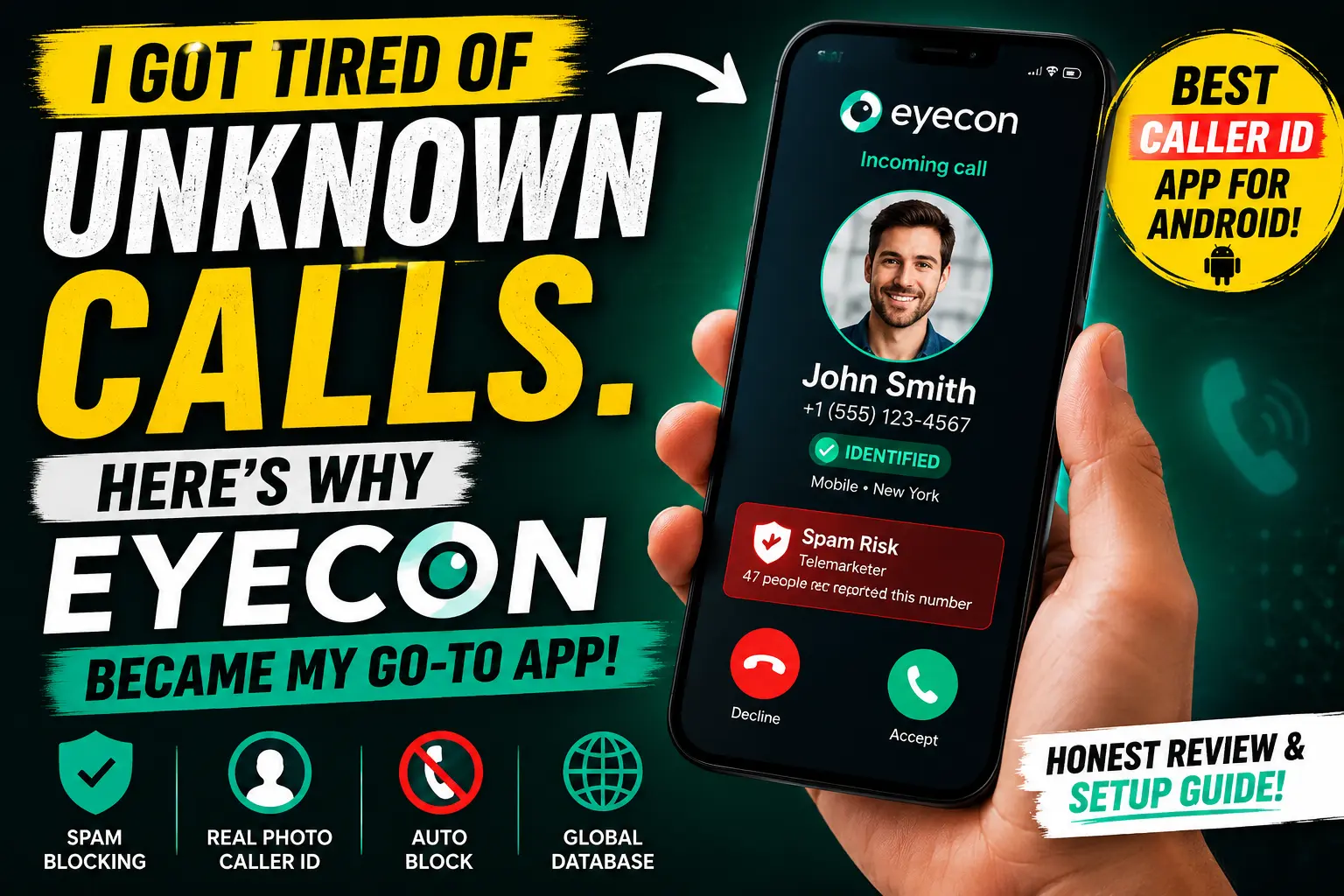
If you’ve ever stared at your screen trying to decide whether to pick up a number you don’t recognize, you know the exact anxiety I’m talking about. Could be your delivery guy. Could be your kid’s school. Could also be a robocall trying to extend your car’s warranty for the fourth time this week.
I tried a few apps. Truecaller was the obvious first choice — everyone uses it. But after a while I noticed it kept pushing me toward features I didn’t need, and the spam database felt patchy for my region. A friend mentioned Eyecon almost offhandedly, and I figured I’d give it a shot. That was several months ago. I’m still using it.
Here’s everything you need to know — including what surprised me, what annoyed me, and how to actually set it up properly the first time.
So What Even Is Eyecon?
Eyecon is a free caller ID and spam blocking app for Android. The core idea is simple: when someone calls you, the app pulls real information about who’s calling — their photo from social media or its own database, their name, and whether the number has been flagged as spam.
What actually sets it apart — and honestly what made me keep it — is the visual caller ID feature. Instead of showing you a blank gray circle or some initials, Eyecon tries to display an actual profile picture for the caller. It pulls this from Facebook, LinkedIn, or its own crowd-sourced image library. The first time a contact I hadn’t saved showed up with their actual face on screen, it felt almost a little eerie. In a good way.
How to Download & Set Up Eyecon
The installation is pretty painless. Here’s exactly how I did it, step by step:
-
01Open the Google Play Store and search for “Eyecon — Caller ID & Block”. Look for the app by Social Mobile Apps Ltd. It’s free to download.
-
02Tap Install and wait. The app is under 50MB so it’s quick even on slower connections. Once installed, open it.
-
03Grant permissions carefully. Eyecon will ask for access to your contacts, phone calls, and phone state. These are all necessary. You can review them later in Settings → Apps → Eyecon → Permissions.
-
04Set Eyecon as your default dialer. This is the step most people skip and then wonder why it isn’t showing caller info. Go to Settings → Default Apps → Phone App → select Eyecon. Without this, the stock dialer controls your incoming call screen.
-
05Connect a social account (optional but recommended). Signing in with Facebook dramatically improves how many callers get photos matched to them. Skip if you’re privacy-conscious — the app still works, just with fewer photo matches.
-
06Enable spam blocking. In the app, go to the shield icon or “Block” tab, and toggle on automatic spam blocking. You can choose to block silently or send to voicemail.
-
07Test it. Have someone call you whose number you haven’t saved. If their photo or name shows up, it’s working. If nothing appears, recheck Step 4 — that’s the most common culprit.
If Eyecon’s caller screen isn’t appearing over your lock screen, go to Android Settings → Apps → Eyecon → Display over other apps and enable it. Samsung One UI and Xiaomi MIUI both disable this by default.
What It’s Actually Like Day-to-Day
After a few days with it running, the honest experience is this: it’s quiet and it just works. That sounds underwhelming but that’s genuinely what you want from a caller ID app — you don’t want to think about it.
The spam blocking is aggressive in a satisfying way. Numbers that would’ve interrupted my work three times a day just… don’t ring anymore. Eyecon silently blocks them and logs them so you can review later. I checked my blocked log after the first week and found 11 blocked calls — six of which were the same telemarketing number I’d been getting for months.
The photo matching genuinely impresses me. Out of the last 20 unknown calls I received, Eyecon correctly identified 14 with a name or face. Some of these were local businesses I’d never saved — a plumber’s office, a GP clinic — that showed up with their business name and logo. That changes whether you pick up.
One thing that caught me off guard early on: Eyecon replaces your entire dialer, not just the incoming call screen. So when you make calls, you’re using Eyecon’s interface too. It takes about two days to get used to. It’s actually cleaner than Samsung’s stock dialer, in my opinion, but your mileage may vary.
Eyecon vs. Truecaller — Honest Take
I used Truecaller for about two years before switching. Here’s what I actually noticed:
| Category | Eyecon | Truecaller |
|---|---|---|
| Photo Caller ID | Excellent — pulls from social profiles Winner | Mostly initials unless contact is saved |
| Database Size | Good globally | Larger, especially South Asia Winner |
| Spam Blocking | Reliable, community-driven Winner | Also reliable, slightly older data |
| App Focus | Calls only — clean Winner | Calls + SMS + Payments (bloated) |
| Free Version | Full features, minor ads Tied | Full features, minor ads Tied |
If photo matching matters to you, Eyecon wins. If you’re in India, Pakistan, or Bangladesh and raw number identification accuracy is the priority, Truecaller’s larger database might still edge it out for your specific use case.
Common Mistakes to Avoid
-
✕Not setting it as default dialer. The single most common reason people say the app “doesn’t work.” Without it, Eyecon can’t show anything on incoming calls.
-
✕Blocking all unknowns right away. The default spam settings are well-calibrated. Let it run for a week first before adjusting aggressiveness — otherwise you’ll miss legitimate calls.
-
✕Skipping “Display over other apps.” Needed for the caller screen to appear when your phone is locked. Easy to miss during setup and easy to fix later.
-
✕Expecting it on iPhone. Eyecon is Android-only. iOS restrictions prevent this. iPhone users should look at Hiya or Apple’s built-in Silence Unknown Callers setting instead.
-
✕Not reporting spam numbers. The whole community benefits when you tap “Report Spam” after a junk call. Takes two seconds and helps everyone.
Like most caller ID apps, Eyecon uploads your contacts to its servers to power the identification features. Standard practice, but worth knowing. If you work in a sensitive profession or have privacy-conscious contacts, read through their privacy policy before connecting your address book.
Is the Free Version Enough?
Yes — for most people, absolutely. The free version gives you caller ID, spam blocking, and photo identification with no paywall. The premium tier (Eyecon+) adds things like seeing who viewed your profile, deeper call analytics, and an ad-free experience.
I used the free version for about three months before upgrading, and honestly the only reason I upgraded was the ads. They don’t affect functionality but get mildly annoying over time. The core features — which are the only ones most people actually care about — are fully free.
Real Scenarios Where It’s Made a Difference
A delivery came when I was in a meeting. My phone showed an unknown number with a photo of a man in a delivery uniform and the label “Delivery / Courier.” I stepped out and picked up instead of letting it go to voicemail. Package delivered. Small thing, real thing.
My bank’s fraud department called on an unfamiliar number. Eyecon flagged it with the bank’s name and logo. I picked up — it was a legitimate fraud alert on my account that needed immediate attention. Without Eyecon, I probably would’ve ignored it.
On the flip side: a number came in marked “Reported: Telemarketer – 47 reports.” I didn’t pick up. Later my friend texted asking if I’d gotten a call from a survey company he’d signed up for. So yes, there are false positives. About one every three weeks in my experience — an acceptable rate, but worth knowing.
There’s something genuinely peaceful about picking up your phone and knowing what’s on the other end before you say hello. Eyecon doesn’t promise to identify every call — it can’t. But for the volume of unknown numbers most of us deal with, it does a remarkably honest job. No magic, no nonsense. You download it, set it as your dialer, and within a day or two you’ll wonder why you put up with the guessing game for so long. If you’re on Android and spam calls are a regular frustration, just try it. Setup takes ten minutes. If you hate it, your old dialer is one settings change away. But I’d bet you won’t.