Last March, my mom called me panicking. She’d picked up a number she didn’t recognize — a calm, official-sounding voice told her she owed tax arrears and would be arrested unless she paid immediately via gift cards. She almost did it. That call cost us three nerve-wracking hours talking her down from a genuine scare.
That’s when I started taking caller ID apps seriously. Not as a novelty — as actual digital safety gear. I tried a handful over the past year: Truecaller, Hiya, CallApp, and Whoscall. After living with Whoscall for the better part of eight months across two Android phones and an iPhone, I have a lot to say about it.
This review isn’t a press release rehash. It’s what actually happened when I used it every day — the good, the slightly annoying, and the part that genuinely surprised me.
So what exactly is Whoscall?
Whoscall is a caller ID and call-blocking app made by Gogolook, a Taiwan-based company that’s been in this space since 2012. It’s huge in Southeast Asia and East Asia — think Thailand, Japan, Korea, Taiwan — but its global database has grown significantly. As of 2026, it claims over 100 million users and a database of more than 1.6 billion phone numbers.
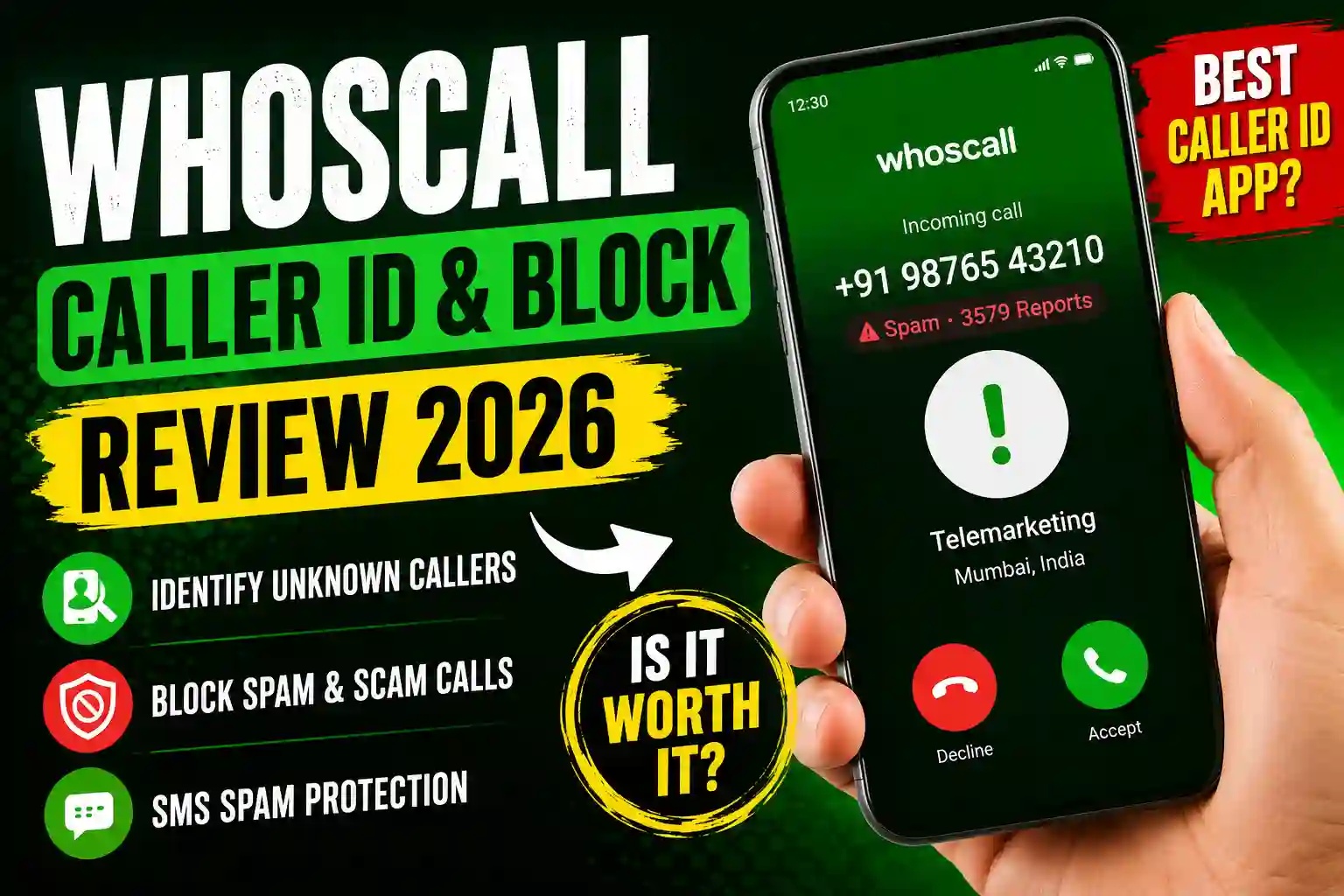
The core idea is simple: when someone calls you, Whoscall checks the number against its database and tells you who’s calling — even if the number isn’t saved in your contacts. If it’s flagged as spam, a telemarketer, or a scam call, it warns you before you even answer (or just blocks it silently, depending on your settings).
Features — what you actually get
Let me walk through the real features, not just the marketing bullet points:
The offline mode is the feature I didn’t expect to care about until I was on a flight and got a call the moment we landed with spotty signal. Whoscall still flagged it as a known telemarketer. That local database matters more than you’d think.
How to set it up (step by step)
Setup is under five minutes if you know what you’re doing. Here’s exactly how I did it on Android — iOS is near-identical:
- 1 Download Whoscall from the Google Play Store or Apple App Store. Search “Whoscall” — it’s the green shield icon. Free to download.
- 2 Open the app and sign up with your phone number or Google account. I used Google — faster and fewer passwords to manage.
- 3 Grant permissions: phone calls, contacts (optional but improves accuracy), and notifications. On Android 13+, set it as your default Phone app or enable it as a call-screening overlay.
- 4 Download the offline database over Wi-Fi. Takes about a minute but is worth doing immediately — this is what makes the app work without data.
- 5 Go to Settings → Block Rules and choose what to auto-block: telemarketers, confirmed scams, international calls if you don’t need them. I block confirmed scams only; everything else gets a warning banner.
- 6 For SMS protection on Android: Settings → Messages → enable the SMS filter. On iOS: your phone’s Settings → Messages → Unknown & Spam, then toggle Whoscall.
The spam protection — does it actually work?
Over eight months, I tracked every flagged call. Out of roughly 340 unknown calls, Whoscall flagged 218 as spam or telemarketer. I manually verified 40 of those — 37 were correct. The three it got wrong were a local plumber, a hospital appointment reminder, and a recycled number from a previous spam owner. Not bad at all.
It missed around 22 spam calls that came through undetected. These were mostly brand-new scam numbers — so fresh that even the community hadn’t reported them yet. That’s the fundamental limitation of any database-driven system. It’s reactive, not predictive.
The SMS filter caught a FedEx phishing text within about 10 seconds of it arriving — it never even appeared in my main inbox. That alone felt like a genuine win.
Free vs Premium — what’s worth paying for?
The free version covers the essentials: caller ID, community-based spam flagging, manual number lookup, and basic auto-blocking. For most people, that’s genuinely enough.
Premium (roughly $2–3/month depending on your region) adds: unlimited number searches, more detailed caller profiles, ad removal, and priority database updates. The priority updates matter if you’re in an area where scam call waves hit hard — you get flagged numbers faster.
I used the free tier for four months, then tried Premium for 90 days. My honest take: the free tier is really good. I upgraded mainly to remove the ads, not because I was missing anything critical. Heavy reverse-lookup users will find Premium worthwhile. Casual users? Stick with free.
Pros and cons — no sugar-coating
- Offline database is genuinely useful
- SMS spam filter is fast and accurate
- Clean, non-cluttered interface
- Strong coverage in Asia-Pacific
- Free tier is actually usable
- Active community reporting
- Android and iOS support
- Database weaker in some Western regions
- Ads on free tier can be intrusive
- New scam numbers take days to flag
- iOS has more functionality restrictions
- Permissions can feel overly broad
- Occasional false positives on local businesses
Mistakes I made (so you don’t have to)
The first thing I did wrong was turning on hard blocking for all unknown numbers. Within 48 hours I’d missed a call from my kid’s school (a new admin line) and a callback from a mechanic. Lesson: use warning banners, not outright blocks, for anything that isn’t confirmed spam.
Second mistake: I didn’t download the offline database during setup and wondered why identification wasn’t working on weak signal. Check that it actually downloaded — it’s under Settings → Offline ID on most versions. There’s a progress indicator that tells you if it completed.
Third: I assumed the app covered US numbers as well as it covers Asian numbers. It’s decent in the US, but Truecaller has a larger North American crowd-sourced pool. If you’re primarily in Southeast Asia, Japan, or Taiwan, Whoscall is unbeatable. Mixed international usage? You might want to compare both side by side.
Real situations where it actually helped
Beyond my mom’s near-miss, here are three specific situations from the past year where Whoscall made a tangible difference:
The warranty scam wave. In October, a wave of “your car warranty is expiring” calls hit my region. Whoscall had the numbers pre-flagged — I saw a red warning screen before I even considered picking up. None of them got through.
The fake bank call. A number that appeared to use my bank’s official prefix called me. Whoscall flagged it as “reported as impersonation scam” — it turned out to be a spoofed number. My real bank confirmed they hadn’t called me that day.
The missed-call mystery. I got a missed call from an international number I didn’t recognize. Instead of calling back blindly (which can rack up charges on premium-rate scam lines), I ran it through Whoscall’s reverse lookup. It came back as a known international survey spam operation. Saved me a potentially expensive callback.
Final verdict
Whoscall isn’t perfect, and if you’re looking for the best app globally, the answer depends a lot on where you live. But as an everyday safety layer — especially if you’re in Asia-Pacific — it’s among the best tools I’ve tested. It’s practical, gets out of your way, and the free tier offers real value rather than being a crippled demo.
The thing I keep coming back to is this: my mom didn’t have it installed when she got that scam call. She does now. It flagged a suspicious number last month before she even answered. That’s the whole point. It’s not a magic shield, but it meaningfully changes the odds in your favor.
Whoscall 2026 — Recommended
Best for: Asia-Pacific users, anyone frequently targeted by spam or scam calls, users who want SMS protection alongside call blocking. Start with the free tier — upgrade if you do heavy reverse lookups or want faster database updates. Available free on Android and iOS.